
The native HubSpot Salesforce integration is the right starting point for almost every organization: it syncs contacts, companies, and deals bidirectionally between the two systems on a recurring cycle. You’ll need HubSpot Professional or Enterprise and a Salesforce edition with API access to install it. Reach for middleware only when custom objects, real-time updates, or high sync volume push past what the connector was built to handle.
TL;DR:
- The native HubSpot Salesforce integration syncs records every 10 to 15 minutes, updating contacts, companies, and deals without detailed change history or real-time capability.
- Setup requires a HubSpot Professional or Enterprise plan, a Salesforce edition with API access, and a dedicated Salesforce user with minimal permissions; skipping this increases risk of breakage.
- Proper field mapping, ownership decisions, and inclusion lists are critical to prevent sync errors, data corruption, and unnecessary API load, with picklist and validation rule mismatches being common failure points.
- Monitoring sync health weekly, managing version updates, and setting governance practices like monthly audits help sustain data quality and prevent silent drift over time.
- Use middleware only when supporting complex custom objects, real-time needs, multiple portals, or advanced transformations; otherwise, the native connector suffices for most standard use cases.
Table of Contents
- How does the HubSpot Salesforce integration actually work?
- What licensing and permissions do you need before you install?
- How do you install and connect HubSpot to Salesforce?
- How should you map fields and set sync direction?
- How do you monitor sync health and fix common errors?
- When should you add middleware to the integration?
- What governance practices keep the integration healthy long term?
- How do you set up custom field mappings and automation triggers?
- What troubleshooting issues go beyond standard sync errors?
- How does the integration change day-to-day sales and marketing workflows?
- What security and compliance considerations apply to synced data?
- What tools help you monitor integration performance over time?
- How should you clean and deduplicate data before integrating?
- Brainiac Consulting’s take on managing this integration long term
- Get your HubSpot Salesforce integration built and managed properly
- Where to go next for HubSpot Salesforce integration details
- Sources
How does the HubSpot Salesforce integration actually work?
The connector maps HubSpot contacts to Salesforce Leads and Contacts, companies to Accounts, and deals to Opportunities, then keeps both sides updated as records change. It’s included with HubSpot Professional and Enterprise plans, and it checks for updates on a recurring cycle that has historically run every 10 to 15 minutes.
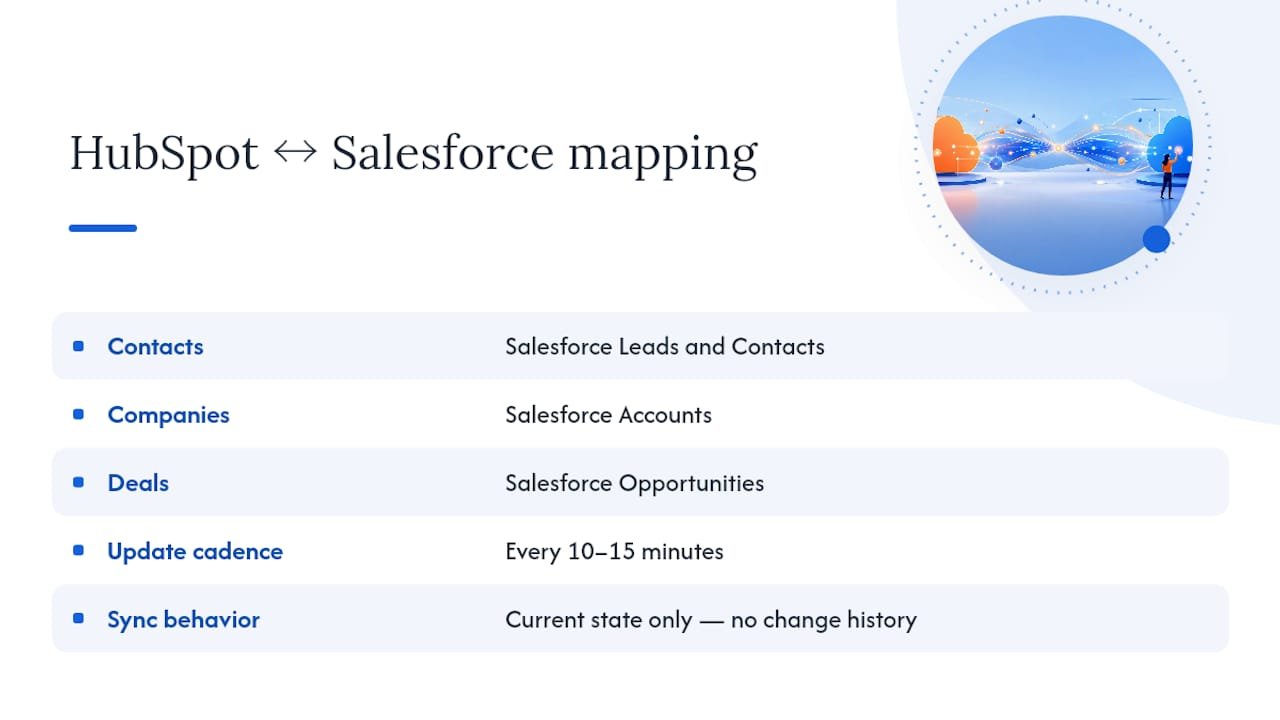
That cadence matters more than most admins expect going in. The connector syncs current state, meaning it updates the latest version of a field, but it doesn’t hand you a change history the way an event log would. If you need to know that a deal stage flipped three times last Tuesday, you won’t find that story in the sync itself.
Practitioners who work with the connector regularly are blunt about its role: it’s a sync engine, not a reporting layer. Complex attribution logic, multi-touch modelling, or custom transformations belong somewhere else in your stack, and treating the native connector as a reporting bridge tends to produce inconsistent numbers once an organization scales past a few thousand records.
What licensing and permissions do you need before you install?
Before you touch the install button, confirm three things: your HubSpot subscription tier, your Salesforce edition, and who’s going to own the connection on both sides.
- HubSpot plan: Professional or Enterprise. The native connector isn’t available on Starter, and it’s included at no extra cost once you’re on a qualifying plan.
- Salesforce edition: You need API access, which comes standard with Enterprise and Unlimited editions, or as an add-on for Professional edition.
- Integration user: Create a dedicated Salesforce user for the connection rather than tying it to a personal admin account. Give that user the minimum permission set needed for object read/write on Leads, Contacts, Accounts, and Opportunities, and nothing broader.
- Network allowlisting: HubSpot connects from dynamic IP ranges, so if your Salesforce org enforces login IP restrictions, you’ll need to add a trusted IP range before the connection will hold.
Skipping the dedicated user is the most common early mistake we see. When the integration is tied to a personal login, it breaks the moment that person changes their password or leaves the company.
How do you install and connect HubSpot to Salesforce?
Installation happens in two places, and the order matters. You start in HubSpot, approve a managed package in Salesforce, then come back to finish authentication.
- Launch the install from HubSpot. Go to your integrations settings and select the Salesforce connector from the HubSpot Marketplace.
- Approve the managed package in Salesforce. You’ll be redirected to log in with your dedicated integration user, not your personal admin credentials.
- Grant the requested permissions. Salesforce will ask you to confirm access scopes. Review these against the minimum permission set you defined earlier rather than accepting defaults blindly.
- Choose sandbox or production. If you’re testing first, connect to a Salesforce sandbox and mirror your intended field mappings there before touching live data.
- Run a permission check. Confirm the integration user can read and write to every object you plan to sync.
- Do an inclusion-list dry run. Set a narrow inclusion list (a single test segment) before opening the gates wide.
- Sync a handful of sample records. Watch how they land on both sides before scaling up.
If you’re migrating a Salesforce org rather than installing fresh, sequence the work carefully: disable the existing integration, export your current mappings, complete the org migration, then reconnect and remap. HubSpot’s own guidance notes that account and opportunity relationships may need remapping after a migration, since the sync won’t automatically preserve them without planning.
Pro Tip: Run your first live sync during a low-traffic window and watch Sync Health in real time for the first hour. Catching a picklist mismatch on five records is a five-minute fix; catching it on five thousand is a Tuesday you won’t get back.
A properly scoped install, according to admin practitioners who do this regularly, typically takes one to two weeks of focused work when you include mapping and testing. Rushing that timeline is how orphaned records and duplicate leads end up in your pipeline six weeks later.
How should you map fields and set sync direction?
Every field needs an owner. Before you map anything, decide which system holds the source of truth for each property, because letting both systems write to the same field is how data corrupts silently over months.
Some fields are obvious one-way candidates. Lead source, original campaign, and marketing-qualified-lead status should flow from HubSpot to Salesforce and stay locked there, since HubSpot generates that data first. Deal stage and close date usually flow the other direction, from Salesforce to HubSpot, because sales owns that motion. A smaller set of fields, like email address or phone number, genuinely benefit from two-way sync since either team might update them first.
- Map contact-level fields with lifecycle stage in mind; don’t let a Salesforce Lead conversion orphan the HubSpot record’s history.
- Align picklist values exactly between systems. A “Closed Won” in Salesforce that doesn’t match a HubSpot dropdown label is a guaranteed sync failure.
- Use inclusion lists as a gate, not an afterthought, so only sales-ready contacts cross into Salesforce.
Picklist and validation-rule mismatches are the single most common root cause of sync errors admins encounter after go-live, according to practitioner field reports. Document every Salesforce validation rule that could reject incoming HubSpot data before you flip the switch, not after.
Setting a smart inclusion list also protects your Salesforce instance from bloat. Gating which contacts sync until they meet defined sales-ready criteria keeps your sales team’s CRM clean and reduces the API load the connector generates on every cycle.
How do you monitor sync health and fix common errors?
Once the connector is live, your job shifts from setup to operations. HubSpot’s integration settings give you three levers worth checking weekly: Sync Health, API call allocation, and per-object sync rules.
- Sync Health dashboard: Shows error cards by object type, telling you exactly which records failed and why.
- API call allocation: You can allocate how many API calls go toward the Salesforce sync versus other integrations pulling from the same daily limit.
- Per-object sync rules: Adjust field mappings or pause sync for a specific object without disabling the whole connection.
The errors you’ll see most often fall into a short list: validation rule failures (a Salesforce rule rejecting a HubSpot value), missing required fields (Salesforce demands a field HubSpot isn’t populating), and picklist mismatches (values that don’t map cleanly between dropdowns). Each has a direct fix: adjust the validation rule or exclude the field from sync, backfill the required field or make it optional, or align the picklist values on both sides.
Pro Tip: Check Sync Health every Monday morning for the first month after go-live, then move to biweekly once error volume stabilizes. A sudden spike almost always traces back to someone adding a new required field in Salesforce without telling the integration owner.
When should you add middleware to the integration?
The native connector handles the majority of standard use cases well, but it has real limits. Reach for middleware or an iPaaS layer when you hit one of these triggers:
- Custom-object relationships the native connector doesn’t support out of the box.
- Sub-second latency needs, since the connector’s periodic cycle isn’t built for real-time triggers.
- Multi-portal consolidation, when several HubSpot portals need to feed one Salesforce org.
- Advanced data transformations that go beyond simple field mapping.
Middleware platforms solve these gaps but add licensing cost and technical overhead. A more sensible interim pattern for most teams is selective middleware: bolt on a third-party tool for the one problematic flow, like custom-object syncing, while leaving the native connector to handle everything else.
What governance practices keep the integration healthy long term?
Sync issues rarely appear all at once. They accumulate quietly through unmapped picklist values, stale inclusion lists, and nobody owning the fix when something breaks.
- Stage your rollout. Start with a narrow inclusion list covering one segment, confirm clean data on both sides, then expand.
- Run monthly field audits. Check for new Salesforce picklist values or validation rules added since your last review.
- Assign clear ownership. One named person should be accountable for triaging Sync Health errors, not a shared inbox.
- Reconcile KPIs across teams. Marketing and sales need to agree on what “qualified lead” or “closed deal” means in both systems before they argue about the numbers.
Pro Tip: Put a recurring calendar hold on the books for your integration owner, monthly at minimum. Treating the connection as “set it and forget it” is exactly how field mappings quietly drift out of alignment with what each team actually needs six months later.
How do you set up custom field mappings and automation triggers?
Custom field mapping starts in HubSpot’s Salesforce integration settings, under the object-specific mapping panel. Here’s the practical sequence:
- Identify the custom field on both sides. Confirm the field exists in Salesforce first, since HubSpot can’t map to a field that doesn’t yet exist on the target object.
- Match data types exactly. A HubSpot number field won’t map cleanly to a Salesforce text field, so fix type mismatches before attempting the mapping.
- Set sync direction per field. Decide one-way or two-way based on which system owns that data, using the ownership logic from earlier in this guide.
- Save and test with a single record. Update the field on one test contact and confirm it flows correctly before applying broadly.
- Build the automation trigger. In HubSpot workflows, use “property changed” as your enrollment trigger, then set the workflow to fire an update back to Salesforce once the sync confirms the change landed.
- Avoid circular triggers. If a workflow in HubSpot updates a field, and that same field triggers a Salesforce process that writes back to HubSpot, you can create an update loop. Structure your HubSpot workflows so only one system initiates the change per field.
Test each new custom mapping in isolation before layering on automation. Combining an untested mapping with an active workflow trigger is how a single bad value cascades across hundreds of records in minutes.
What troubleshooting issues go beyond standard sync errors?
Sync error cards catch a lot, but two categories of problems tend to slip past that dashboard entirely: authentication failures and version conflicts.
Authentication issues usually surface as a connection that was working fine and suddenly stops. The most common cause is the integration user’s password expiring or their multi factor authentication settings changing. Because you set up a dedicated integration user rather than a personal login, resetting credentials for that account is straightforward, but someone still has to notice the failure fast. Set up an alert so a broken authentication token doesn’t sit silent for a week before anyone checks Sync Health.
Version conflicts happen when a record gets updated in both systems within the same sync window before the cycle completes. HubSpot and Salesforce each think they hold the latest version, and depending on your field-level sync direction settings, one update can silently overwrite the other. This is precisely why per-field ownership matters more than a blanket two-way toggle: if deal stage only ever flows from Salesforce outward, there’s no version conflict to resolve because HubSpot never tries to write to that field.

A less obvious issue is managed package version drift. When HubSpot ships an update to the connector, it doesn’t always trigger automatically in every Salesforce org, particularly sandboxes. Check your installed package version periodically against HubSpot’s release notes, especially if a feature that should exist in your settings panel appears to be missing.
How does the integration change day-to-day sales and marketing workflows?
Once contacts, companies, and deals sync automatically, both teams stop asking “did that lead get to sales” and start trusting the pipeline reflects reality. That shift changes behaviour in ways worth planning for.
Sales reps get lead context they didn’t have before: campaign source, email engagement, and content downloads, all visible on the Salesforce Lead or Contact record without anyone manually exporting a spreadsheet. That visibility tends to shorten the qualification conversation, since reps walk into a call already knowing what the prospect engaged with.
Marketing teams, in turn, get closed-loop reporting: which campaigns actually produced closed deals, not just leads that disappeared into a sales team’s inbox. That’s the promise, but it only holds if the field mappings and inclusion lists from earlier sections are actually configured correctly. A sloppy integration produces the illusion of alignment while quietly showing each team different numbers.
The workflow shift also touches lead routing. Instead of a manual handoff, HubSpot’s lifecycle stage changes can trigger automatic Salesforce Lead creation the moment a contact crosses your defined sales-ready threshold, cutting the lag between “qualified” and “in a rep’s queue” from days to minutes.
What security and compliance considerations apply to synced data?
Every record that crosses from HubSpot to Salesforce, and back, is data leaving one system’s access controls and entering another’s. That has real implications for who can see what.
Review field-level security on both sides before you map anything sensitive. A field visible to all Salesforce users by default might contain data that should stay restricted to a specific role, and syncing it in doesn’t automatically apply the same restrictions it had in HubSpot.
Data residency matters too if you operate under regional privacy requirements. Confirm where each platform stores the data your organization syncs, since a contact’s personal information moving between two SaaS platforms may cross data-processing boundaries relevant to consent records you’ve collected.
The dedicated integration user itself is a security control worth taking seriously. Because that account holds broad read/write access across core objects, treat its credentials with the same rigour you’d apply to any privileged service account: unique password, monitored login activity, and immediate deprovisioning if the integration is ever paused for an extended period.
Finally, audit what inclusion lists actually let through. If your gate criteria are loose, you may be syncing more personal data into Salesforce than your privacy policy or data-processing agreements anticipate, which is a compliance conversation worth having with legal before scaling the sync wide.
What tools help you monitor integration performance over time?
Sync Health inside HubSpot remains your first stop, but it’s a snapshot tool, not a trend tool. For ongoing performance tracking, pair it with a few other views.
HubSpot’s integration settings dashboard shows API call consumption over time, which flags whether you’re approaching your daily allocation before it becomes an outage. If call volume is climbing steadily, that’s usually a sign your inclusion lists have widened more than intended, letting more records sync than the original scope called for.
Salesforce’s own reporting can be turned toward the integration too: build a simple report filtered to records with a HubSpot-sourced lead source field, then track record count and data completeness weekly. A sudden drop in completeness on required fields is often the earliest signal of a mapping break, well before it shows up as an error card.
For teams running enough volume that manual checks aren’t sustainable, a managed analytics layer built on top of both platforms, using tools like Power BI or Tableau, can consolidate sync metrics into one recurring report rather than forcing an admin to check two separate dashboards by hand.
How should you clean and deduplicate data before integrating?
The single biggest predictor of a rocky integration isn’t the connector configuration. It’s the state of your data before you flip it on.
Start with duplicate detection in both systems independently. HubSpot and Salesforce each have native deduplication tools, but running them separately before you connect the two systems prevents duplicates from multiplying across both platforms once the sync begins.
Standardize your picklist values before mapping, not after. If HubSpot’s lifecycle stage options don’t line up cleanly with Salesforce’s Lead Status picklist, decide the mapping logic now rather than discovering the mismatch mid-sync, when misaligned picklists become the connector’s most common failure mode.
Audit required fields on both sides. If Salesforce requires a field that HubSpot contacts routinely leave blank, decide whether to backfill that data, relax the requirement, or exclude those records from your initial inclusion list until the gap is closed.
Run this cleanup as its own project with a defined end date, not as an ongoing background task competing with the actual integration setup. A one to two week data cleanup sprint before install, mirroring the timeline admins typically need for the integration itself, pays for itself the first time it prevents a bad batch sync.
Brainiac Consulting’s take on managing this integration long term
We’ve watched enough integrations decay quietly to say this plainly: the connector you install in week one is not the connector you’re running in month eighteen. Salesforce validation rules change, HubSpot ships new picklist options, and nobody updates the mapping documentation. Treating the integration as a managed asset rather than a finished project is the single biggest difference between teams with clean pipeline data and teams arguing about whose numbers are right.
We’ve seen this dynamic play out directly in a Marketo and Salesforce deployment we ran, where the real win came from disciplined field ownership and monitoring, not the initial install. If your mappings are already complex, your governance has gaps, or you’re scaling past what one admin can monitor solo, that’s the point to bring in a managed partner rather than absorbing the risk alone.
— Don
Get your HubSpot Salesforce integration built and managed properly
If you’ve read this far, you already know the native connector isn’t a “set it and forget it” tool, and neither is the alternative of hiring a generalist contractor to install it once and disappear. Brainiac Consulting runs integration work as an ongoing engagement: we handle the readiness assessment, field mapping, pilot deployment on a narrow inclusion list, and then stay on as the managed operations partner watching Sync Health so you’re not the one discovering a picklist mismatch at month three.
Our AI operations platform extends past the basic sync, layering monitoring and automation on top of your HubSpot and Salesforce data so pipeline reporting stays reliable as both systems evolve. If your team is weighing whether to tackle this internally or bring in support for the mapping and governance work, start with a readiness assessment. It’s the fastest way to know exactly where your current setup stands before you commit to a build.
Where to go next for HubSpot Salesforce integration details
For the install flow itself, bookmark HubSpot’s official Salesforce integration guide and the settings management page for ongoing sync rule changes. For a broader look at HubSpot’s marketing capabilities alongside the integration, Brainiac’s HubSpot services overview covers configuration beyond the Salesforce connection itself.
Sources
- Connect HubSpot and Salesforce
- Salesforce and HubSpot integration: an admin’s guide
- HubSpot Salesforce integration: practitioner guide — PineRiverData